SEO
How to Rank Higher on Google Maps
Here’s our pick of five things to do for ranking higher on Google Maps, in the order we’d do them:
- Check your name and address.
- Choose the most specific category you can.
- Verify your Business Profile.
- Fill in the other details that apply.
- Build up genuine reviews.
That order is our view, not Google’s, and it isn’t a ranking of what works best. If your profile won’t let you edit yet, verify first.
Nothing here is guaranteed: Google keeps its ranking details confidential, and it says you can’t pay for a better rank, or ask for one. The menus, limits, rules and Google says lines come from Google’s help pages; the selection, the order and anything marked our view are ours.
What do relevance, distance and prominence mean?
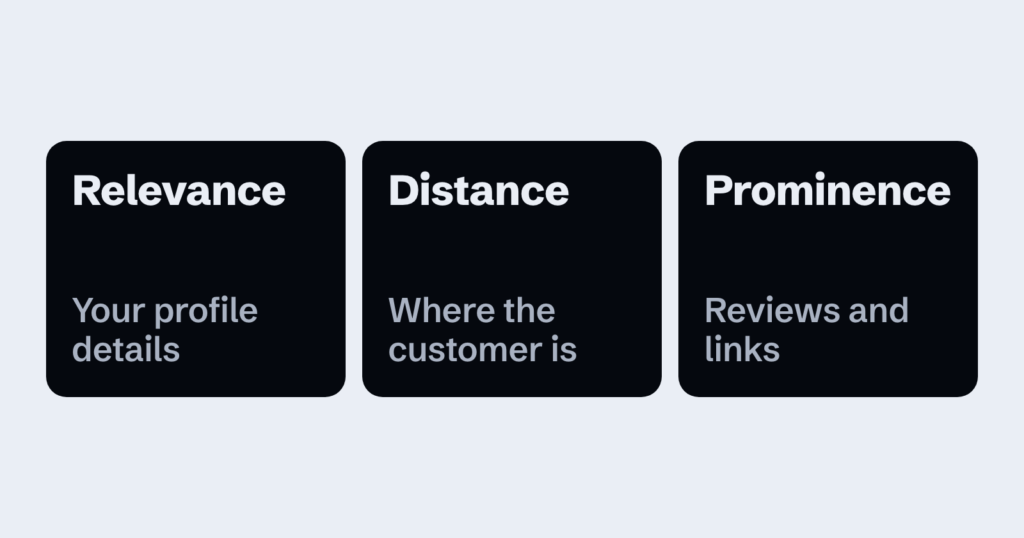
Google’s local results are the businesses listed beside the map when someone searches for something nearby. Google names three factors behind them.
- Relevance is how closely your profile fits what someone searched for. Google says complete, detailed information helps it work out what you do and connect you with the right searches.
- Distance is how far your business is from the person searching. If they haven’t shared their location, Google says it uses what it knows about where they are. Our view: distance is out of your hands, because you don’t choose where a customer stands when they search.
- Prominence is how well known your business is. Google says this also rests on your review count and on how many websites link to you.
How do you set up your profile?
Your Business Profile is the listing Google shows for your business. If you don’t have one yet, you’ll need a Google account to add your business or claim it. We don’t cover that part here, so everything below starts once your profile exists.
To make changes, sign in with the Google account linked to your profile. On a phone, open the Google Maps app and tap Business. On a computer, open Google Business Profile. Choose Edit profile, make your change, then choose Save. Google checks each change before it appears.
Do steps 1 and 2, then choose your categories, the first relevance step below. Then verify at step 3. The reason: you must leave your name, address and category alone while you wait for a postcard. After verifying, moving means verifying again, and changing a category may too. Some businesses might have to verify first. If yours does, start at step 3, then come back to steps 1 and 2 and your categories. We can’t tell you what else is safe to edit during a wait.
- Use your real business name. In Edit profile, enter the name you use in the real world. Watch for: adding a tagline, a service or a city breaks Google’s rules and could get your profile suspended.
- Enter your full address. In Edit profile, go to Location, then Edit next to Business location. Place a map pin if Google can’t find it, and hide the address if customers never come there. Watch for: a rented mailing address, a P.O. box or a remote mailbox won’t do. A co-working space needs signage, and customers and staff there during your hours.
- Verify your business. Choose your categories first if you can, then open your profile, choose Get verified, and follow the method Google picks. Google says verifying makes your business more likely to appear in results. Watch for: Google’s check of your verification can run to 5 business days or occasionally more. A postcard code usually reaches you within 14 days and stops working after 30 days.
- Set a service area, if you travel to customers. In Edit profile, go to Location, then Edit next to Service area. List up to 20 areas, using cities or postal codes. Google says this helps people find your profile. Watch for: you can’t set a radius, and the whole area should sit within about 2 hours’ drive.
- Keep your details accurate. Check your address, hours and other details in Edit profile whenever something changes. Google says complete, accurate details improve your chances of appearing, and that wrong ones might keep you out of relevant searches. Watch for: each location gets one profile.
How do you work on relevance?
Our view: these steps are part of the complete information relevance depends on. We can’t tell you which one does most, so do the ones that apply.
- Choose your categories. In Edit profile, beside Business category, choose Edit. Set a primary category from Google’s list that describes the business itself, not its features, then use Add another category for extras. Google says your categories affect your local ranking. Watch for: you can add up to 9 more, but Google wants the fewest that fit, and changing one may mean verifying again.
- Set your hours. In Edit profile, go to Hours. Choose Open with main hours and enter the hours you’re open to customers, then use special hours for holidays. Watch for: special hours need that main setting and cover a stretch of up to 6 days. For 7 or more in a row, or if you don’t know how long, mark the business temporarily closed.
- Add attributes. These are details like parking or Wi-Fi. In Edit profile, choose More, then Edit next to the group of attributes you want to change. Answer Yes or No, then choose Save. Google says those attributes might help you appear when people search for them. Watch for: some come from customers, and some depend on your location or category.
- Write your description. In Edit profile, say what you offer in up to 750 characters. Watch for: links, promotions, prices and sales don’t belong there.
- Add your services. Choose Edit services, pick the ones you offer, then choose Save. Watch for: this is open to certain categories only, and custom service names can’t carry prices or phone numbers.
How do you work on prominence?
Google says more reviews and good ratings can help your local ranking. Our view: asking customers is the most direct way to get more of them.
- Ask every customer for a review. Choose Read reviews, then Get more reviews, and copy the link, or save a QR code from a computer browser. Google’s ideas for sharing it include a receipt, a thank-you email, a chat as it wraps up, or a sign in your store. Whoever leaves a review has to be signed in to Google. Watch for: Google bans gifts or discounts for reviews, asking only happy customers, on-site pressure, scripts, staff quotas, and reviews from staff or family. Breaking those rules can mean removed reviews, a block on new ones, unpublished reviews or a public warning.
- Ask other websites to link to you. Links are the other thing Google names under prominence, and they aren’t a profile setting, so there’s no menu to point you to. Our view: start with websites that already know you, such as a supplier or a local association.
What else can you do on your profile?
Google’s help pages cover these too, mostly in terms of customers, so we haven’t put them under a factor.
- Reply to reviews. Choose Read reviews, then Reply. Google says helpful replies can help you stand out. Watch for: your business must be verified, everyone can see your reply, and the reviewer gets a notification.
- Add photos and videos. On a computer, search Google for your business name and city, then choose Photos and Add photos. Google says they let customers see what’s on offer and help people recognise you. Watch for: they only show once you’re verified, and they should look like the real thing.
- Add in-store products, if you run a shop. Choose Edit profile, then Products. Google says products might show in local results. Watch for: you need a verified, eligible retail business and a barcode scanner or point-of-sale system.
- Publish posts. Choose Posts, then Add post, and pick an update, an offer or an event. Google checks each post, and says posts help customers decide to visit.
What did we check?
We read 19 of Google’s help and policy pages on 2 November 2026, as a reader in Canada, in English. We didn’t test the menus on a live profile. Options vary by region, so go by what your screen shows.
Where can you go from here?
If your business isn’t showing at all, start with why a business isn’t showing on Google Maps. If you’d like to talk your profile through, ask us about it. Our SEO page covers where a Google Business Profile sits in our SEO work.